Week 1 — Day 5: Amazon Inspector
A full walkthrough of Amazon Inspector v2 — automated vulnerability scanning for EC2 instances, ECR container images, and Lambda functions.
What is Amazon Inspector?
Amazon Inspector is AWS’s managed vulnerability scanning service. It automatically discovers and scans your workloads for software vulnerabilities and unintended network exposure — without you installing anything manually.
Inspector v2 (the current version) covers:
- EC2 instances — OS packages and software vulnerabilities
- Amazon ECR container images — on push and continuously
- AWS Lambda functions — application dependencies
All findings flow into Security Hub automatically.
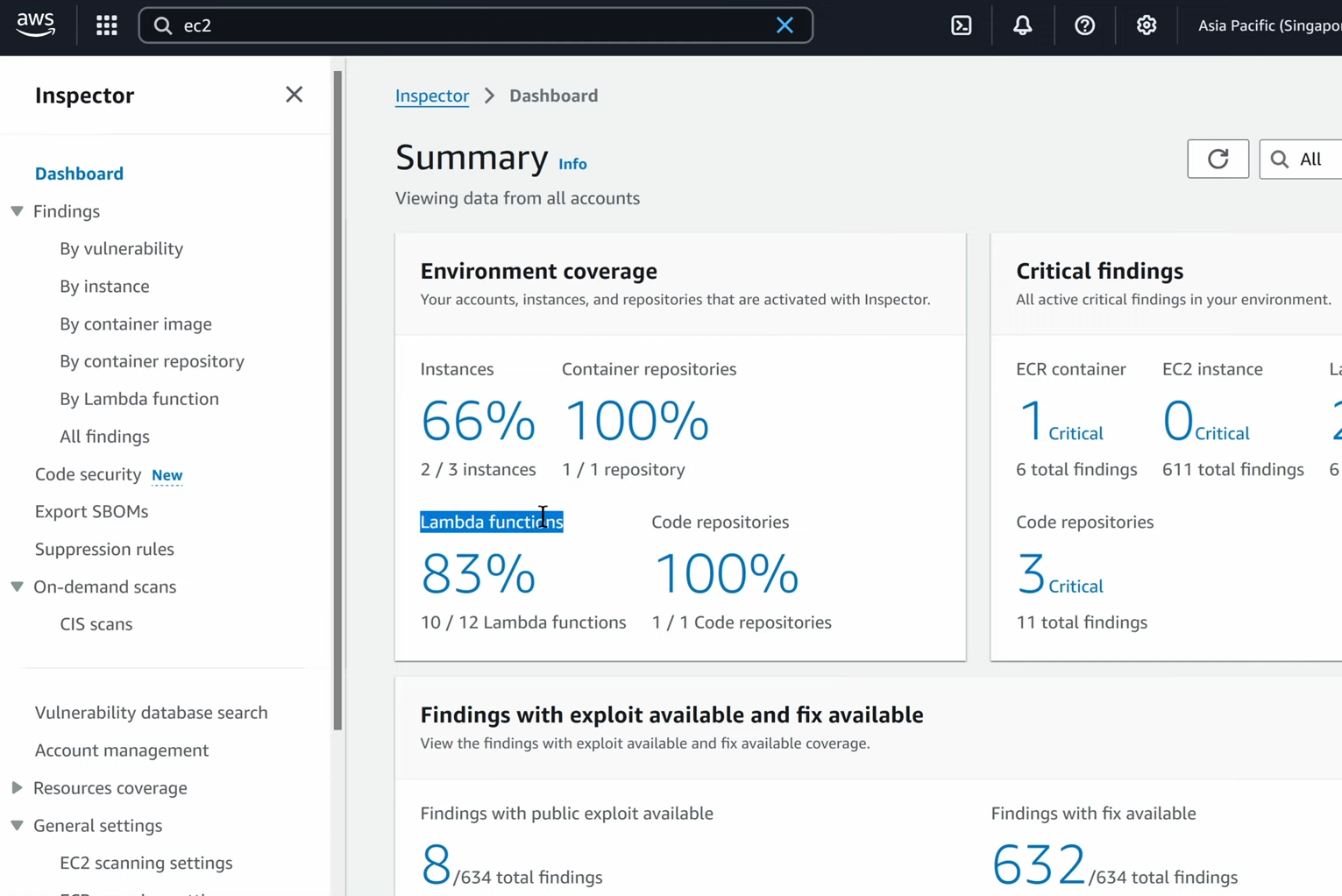
Inspector dashboard showing total findings count, breakdown by severity, and coverage summary (EC2 instances, ECR repos, Lambda functions scanned)
How Inspector Works
Inspector uses the AWS Systems Manager (SSM) Agent already running on your EC2 instances — no new agent needed. It scans:
- Installed packages on the OS
- Application libraries (Python pip packages, Node modules, Java JARs)
- Network reachability — which ports are open to the internet
For ECR and Lambda, Inspector integrates directly with those services — no agent at all.
— Inspector → Coverage page showing all EC2 instances listed with their scanning status (Active/Inactive) and SSM agent status
Enabling Inspector
- Inspector → Get started → Enable Inspector
- Choose what to scan: EC2, ECR, Lambda
- For multi-account: enable from the delegated admin account in Organizations
— Inspector → Enable Inspector page showing the three scan types (EC2, ECR, Lambda) with toggle switches being enabled
Inspector starts scanning immediately and continuously — no schedule to configure.
Understanding Findings
Severity Scoring
Inspector uses CVSS v3 scores and adds Amazon Inspector score which factors in:
- CVSS base score
- Network reachability of the affected resource
- Exploit availability (is there a working exploit in the wild?)
This means the same CVE might score differently on two instances — a critical CVE on a publicly reachable instance scores higher than the same CVE on an isolated internal instance.
| Inspector Score | Severity |
|---|---|
| 9.0 – 10.0 | Critical |
| 7.0 – 8.9 | High |
| 4.0 – 6.9 | Medium |
| 1.0 – 3.9 | Low |
| 0.0 | Informational |
— Inspector → Findings list showing several findings with their Inspector Score, CVSS score, severity badge, and the affected resource ARN
Finding Detail
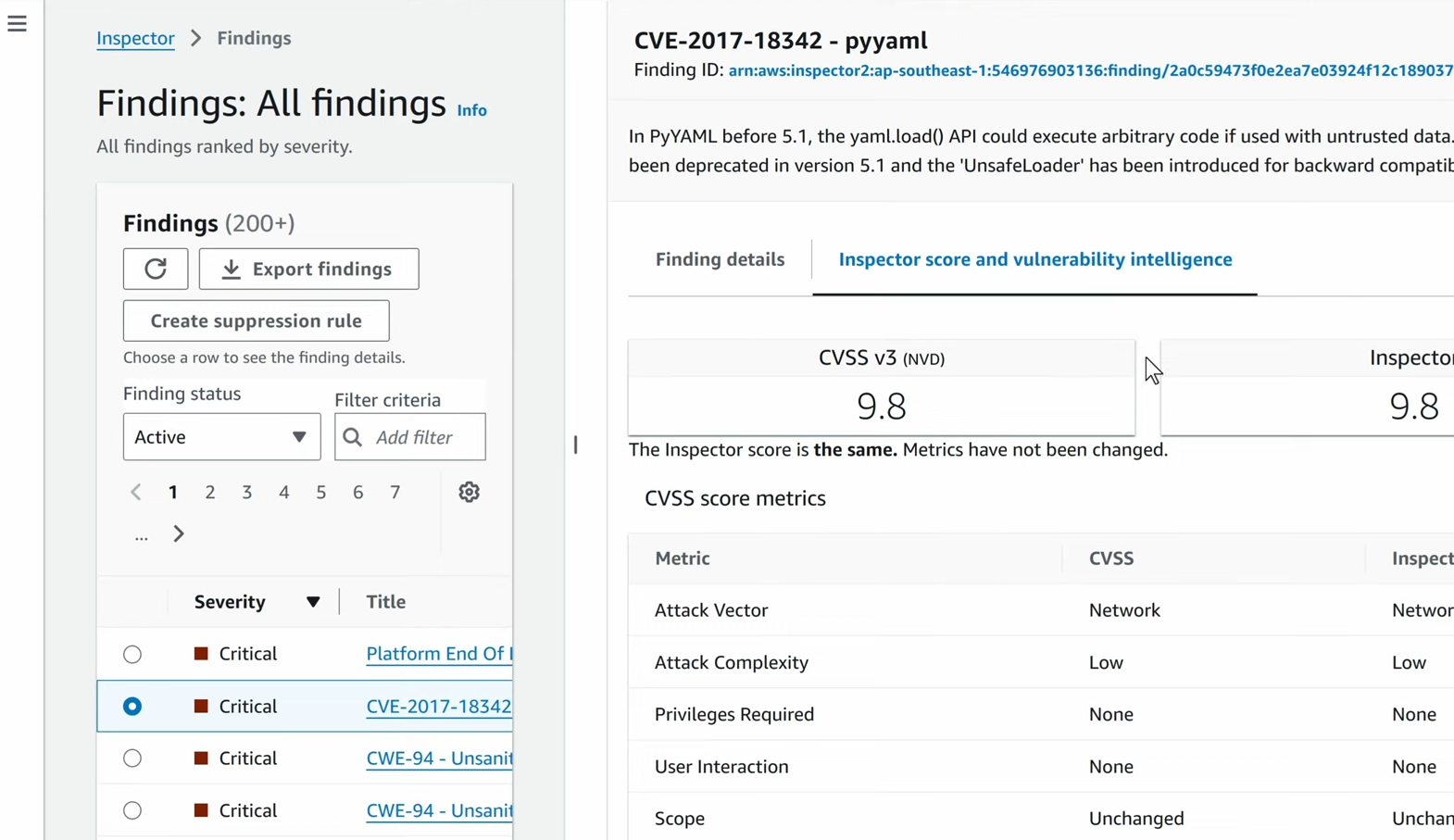
Each finding shows:
— Inspector → a specific finding expanded showing: CVE ID, description, affected package name and version, fixed version, CVSS vector, exploit availability, and the affected EC2 instance or ECR image
Key fields:
- CVE ID — the specific vulnerability identifier
- Affected package — which package has the vulnerability
- Fixed version — what version you need to upgrade to
- Exploit available — whether a public exploit exists (prioritize these)
- Network reachability — if the port hosting the vulnerable service is internet-exposed
EC2 Scanning
Inspector scans EC2 instances for:
- OS package vulnerabilities (via SSM)
- Network exposure — open ports reachable from the internet or other VPCs
Requirement: SSM Agent must be installed and running on the instance (it is by default on Amazon Linux, Ubuntu, and Windows AMIs).
— Inspector → EC2 findings filtered by a specific instance, showing all vulnerabilities found on that instance sorted by score
Fixing EC2 findings: Most EC2 findings are resolved by patching packages. Use AWS Systems Manager Patch Manager to automate this:
- SSM → Patch Manager → Configure patching
- Define a patch baseline (e.g. approve critical patches automatically)
- Schedule a maintenance window
— SSM Patch Manager → patch compliance dashboard showing instances with their patch status (Compliant/Non-compliant)
ECR Container Image Scanning
Inspector scans ECR images:
- On push — every time an image is pushed to ECR
- Continuously — existing images are re-evaluated when new CVEs are published
This means an image that was clean yesterday can become non-compliant today if a new CVE is discovered for a package it contains.
Enabling ECR scanning
- ECR → a repository → Edit → Scan settings → Enable Inspector scanning
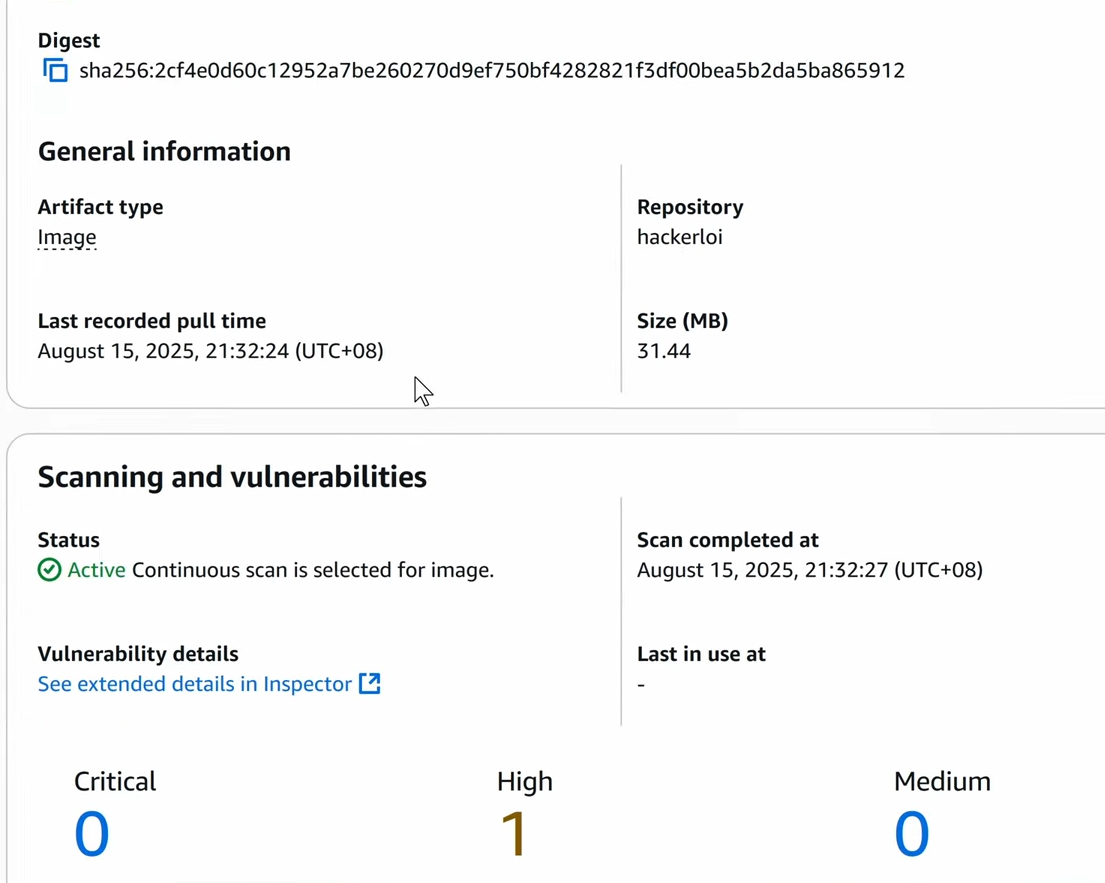
— ECR → repository settings showing Inspector scanning enabled with “Scan on push” and “Continuous scanning” both active
Viewing image findings
- ECR → repository → select an image → Vulnerabilities tab
— ECR → image → Vulnerabilities tab showing a list of CVEs found in the image layers, with severity, package name, installed version, and fixed version columns
Common fix: Update the base image (FROM python:3.12-slim instead of an old version) and rebuild.
1
2
3
4
5
# Before — old base with known CVEs
FROM python:3.9

# After — updated base
FROM python:3.12-slim
Lambda Function Scanning
Inspector scans Lambda functions for vulnerabilities in their dependency packages (the libraries in your requirements.txt, package.json, etc.).
— Inspector → Lambda findings showing a function with a vulnerable dependency — package name, CVE, and severity listed
Fixing Lambda findings: Update the dependency version in your requirements file and redeploy.
# requirements.txt — before
requests==2.25.0

# After — fixed version
requests==2.31.0
Prioritization Strategy
With potentially hundreds of findings, prioritize using this order:
- Critical + Exploit Available + Network Reachable — fix immediately
- Critical + Exploit Available — fix this sprint
- Critical, no exploit — fix within 30 days
- High + Exploit Available — fix within 30 days
- High, no exploit — fix within 90 days
- Medium and below — track and fix in regular patching cycles
— Inspector → Findings filtered by: Severity=Critical AND Exploit available=Yes AND Network reachable=Yes — showing the highest priority findings to fix first
Inspector + Security Hub Integration
All Inspector findings automatically appear in Security Hub. You don’t need to configure this — it’s automatic once both services are enabled.
This means you can:
- See Inspector findings alongside GuardDuty threats in one dashboard
- Use Security Hub’s workflow to assign, track, and resolve findings
- Set up EventBridge rules to alert on new Critical findings from Inspector
— Security Hub → Findings filtered by “Product name = Inspector” showing findings flowing in from Inspector with their resource ARNs
Lab — Scan an EC2 Instance
- Make sure Inspector is enabled and your EC2 instance has SSM Agent running
- Inspector → EC2 findings → filter by your instance ID
— Inspector → Findings page with the instance ID filter applied, showing all vulnerabilities for that specific instance
- Sort by Inspector Score (highest first)
- Click the top finding — review the CVE, affected package, fixed version
- Connect to the instance via SSM Session Manager and update the package:
1
2
3
4
5
# Amazon Linux / RHEL
sudo yum update <package-name> -y

# Ubuntu / Debian
sudo apt-get install --only-upgrade <package-name>
- After update, Inspector re-scans automatically within a few minutes
- The finding should move to
CLOSEDonce the package is patched
— Inspector → finding status changed to Closed after the package was patched on the instance
Key Takeaways
- Inspector is always-on — no schedule, no manual scans
- The Inspector score factors in exploitability and network exposure, not just CVSS — use it for prioritization
- ECR continuous scanning means an image can become vulnerable after it was already deployed — check regularly
- Fix Critical findings with public exploits first — they’re the ones attackers actively use
- Inspector findings automatically flow into Security Hub for unified tracking
References
You can find me online at:
