Week 1 — Day 4: GuardDuty & Security Hub
A full walkthrough of AWS GuardDuty for intelligent threat detection and Security Hub for centralizing and prioritizing security findings across your AWS environment.
The Detection Layer
CloudTrail and Config tell you what happened and what things look like. GuardDuty and Security Hub tell you when something looks malicious or wrong.
- GuardDuty — continuously analyzes your environment for threats using ML and threat intelligence
- Security Hub — aggregates findings from GuardDuty, Config, Inspector, Macie, and third-party tools into one dashboard with compliance scoring
AWS GuardDuty
How GuardDuty Works
GuardDuty is a managed threat detection service. You enable it, and it silently analyzes:
| Data Source | What it detects |
|---|---|
| CloudTrail management events | Unusual API calls, credential abuse, account reconnaissance |
| CloudTrail S3 data events | Suspicious S3 access patterns |
| VPC Flow Logs | Network anomalies, communication with known bad IPs |
| DNS logs | Domains used for C2, data exfiltration via DNS |
| EKS audit logs | Suspicious activity in Kubernetes clusters |
| RDS login events | Brute force, unusual login patterns |
| Lambda network activity | Lambda calling unexpected external endpoints |
GuardDuty uses AWS threat intelligence feeds, ML models trained on AWS-wide data, and anomaly detection — all without you having to configure anything.
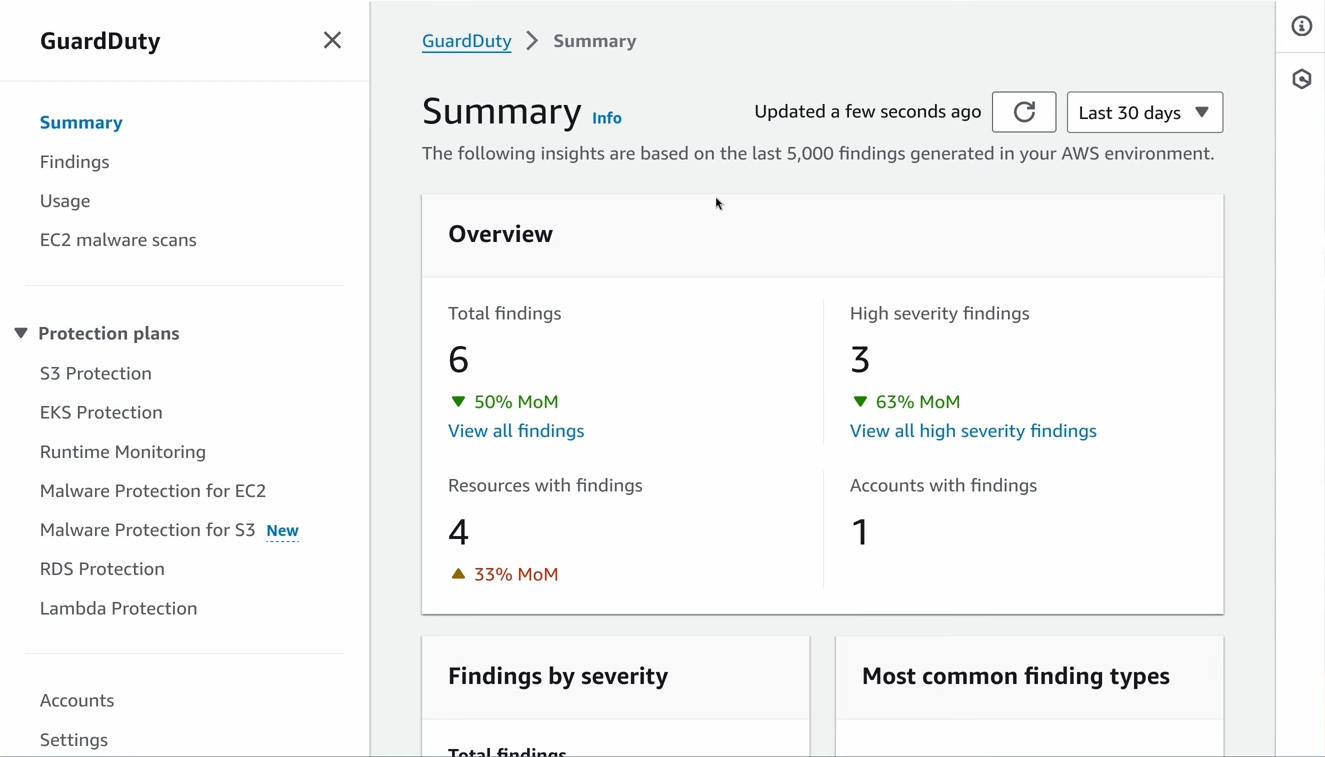
Enabling GuardDuty ( no free service )
- AWS Console → GuardDuty → Get Started → Enable GuardDuty
- That’s it — no agents, no log routing needed
- Optionally enable additional protection plans: S3 Protection, EKS Protection, RDS Protection, Lambda Protection
GuardDuty → Settings → Protection plans showing S3, EKS, RDS, Lambda toggles — all enabled
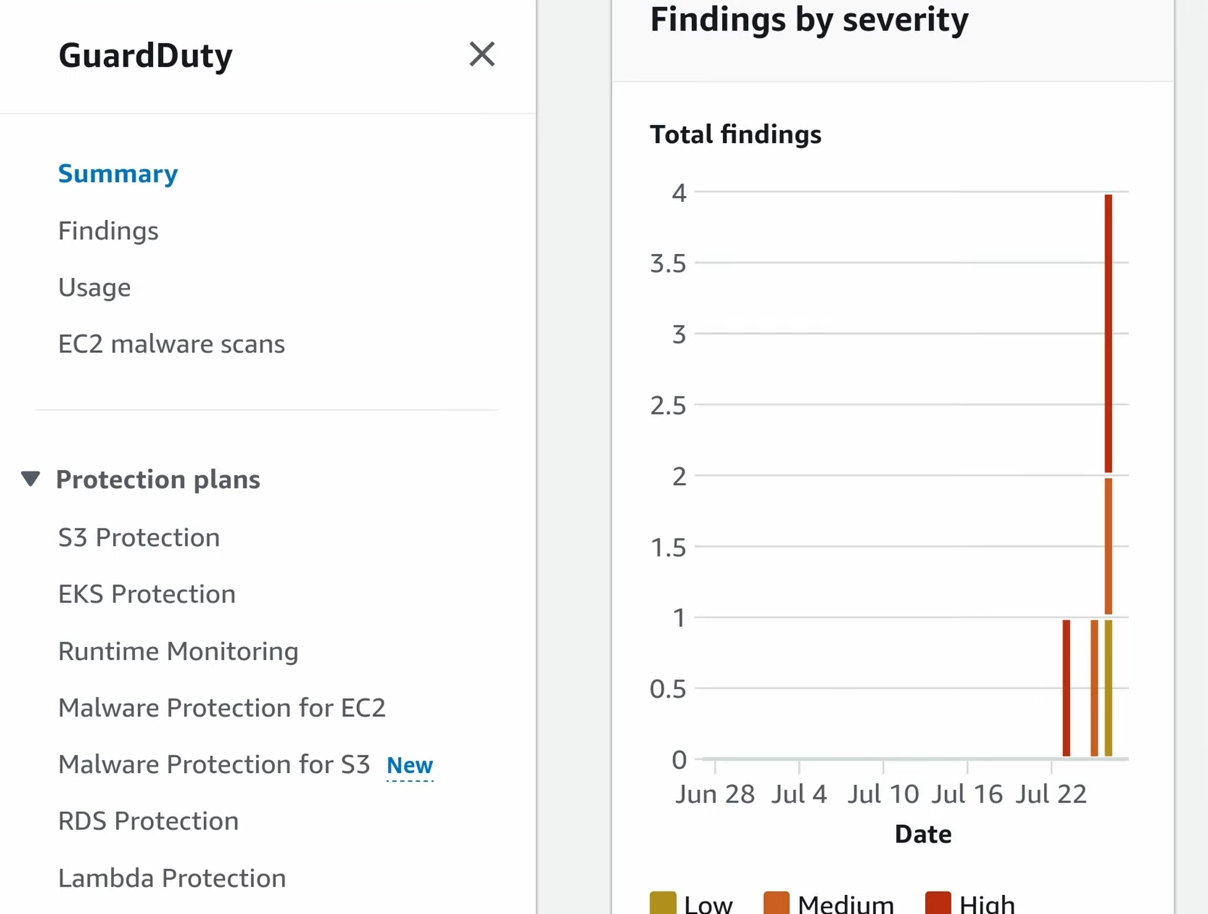
For multi-account orgs: enable GuardDuty from the Organizations management account as a delegated administrator. All member accounts are automatically enrolled.
Understanding Findings
GuardDuty findings follow a naming pattern:
1
ThreatPurpose:ResourceType/ThreatFamilyName.DetectionMechanism!Artifact
Examples:
| Finding | Meaning |
|---|---|
UnauthorizedAccess:IAMUser/ConsoleLoginSuccess.B | Console login from unusual location/IP |
Recon:IAMUser/MaliciousIPCaller | API calls from a known malicious IP doing reconnaissance |
CredentialAccess:IAMUser/AnomalousBehavior | Credential use anomaly detected by ML |
Backdoor:EC2/C&CActivity.B | EC2 communicating with known C2 server |
CryptoCurrency:EC2/BitcoinTool.B | EC2 running crypto mining software |
Exfiltration:S3/MaliciousIPCaller | S3 data accessed from known malicious IP |
Impact:EC2/PortScanFromEC2 | An EC2 instance is scanning other hosts |
Findings have severity levels: Critical, High, Medium, Low, Informational.
GuardDuty → Findings list showing several findings with their severity badges, resource type, and last seen timestamp
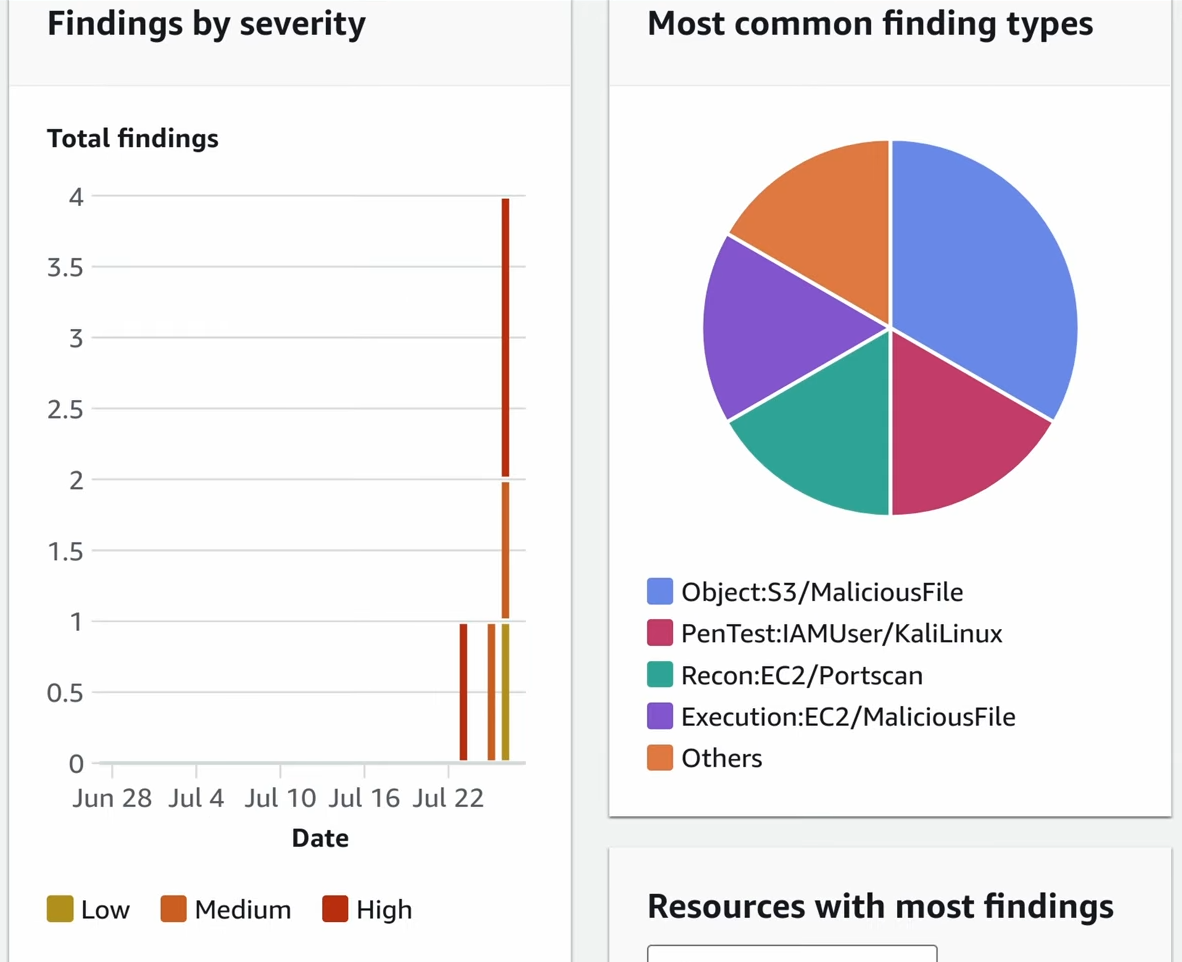
Investigating a Finding
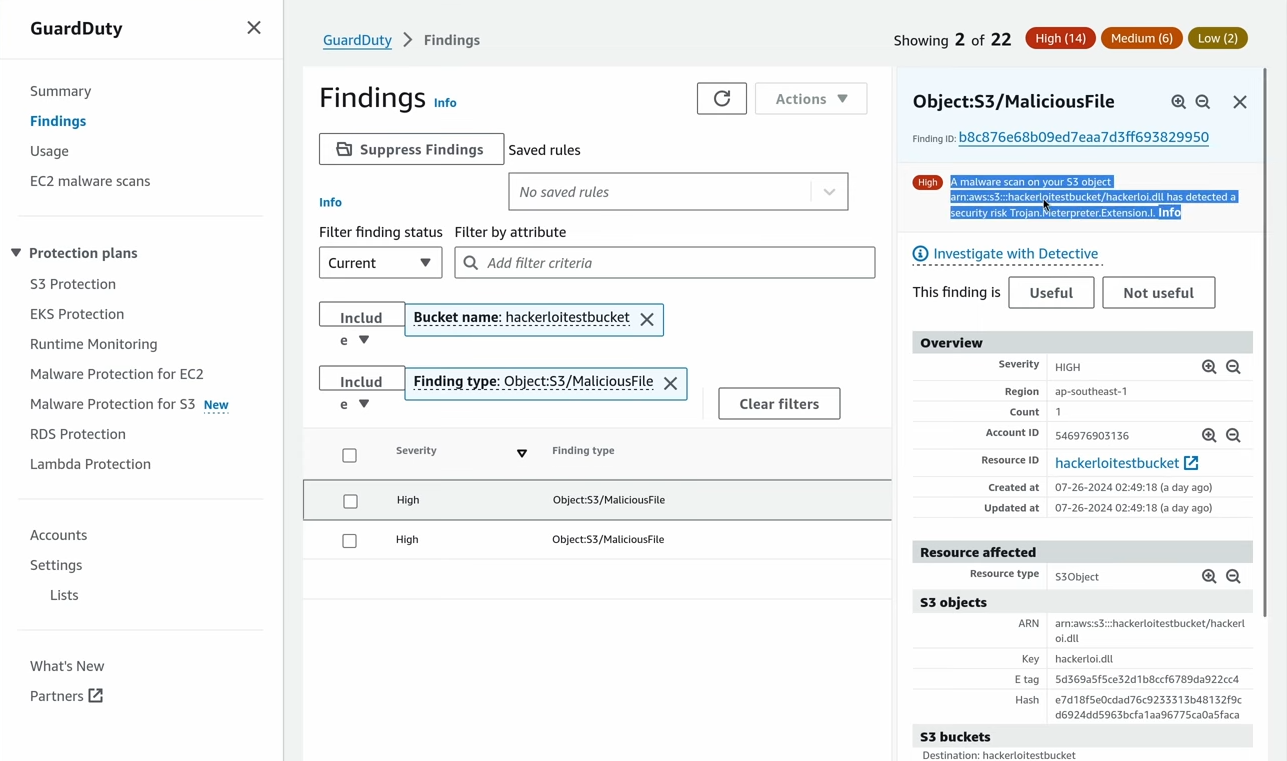
Click any finding to see the full detail:
GuardDuty → a specific finding expanded, showing the affected resource ARN, the actor IP/ASN, the action type, and the evidence section with supporting CloudTrail events
 Key fields to look at:
- Resource — which instance, role, or bucket is affected
- Action — what the threat actor did
- Actor — source IP, ASN, and whether it’s on a threat intelligence list
- Evidence — the underlying CloudTrail events that triggered the finding
Triggering Sample Findings
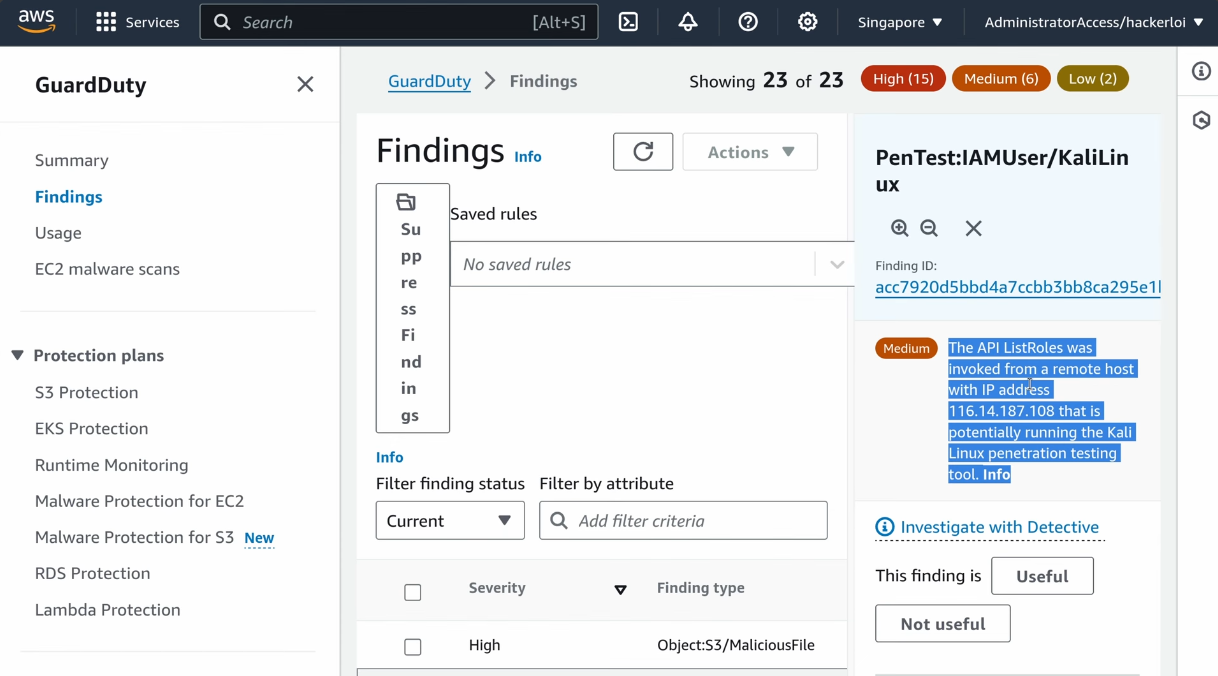
In a test account, generate sample findings without real threats:
- Settings → Sample findings → Generate sample findings
- All finding types appear with
[SAMPLE]prefix
Suppression Rules
Not all findings are actionable. You can suppress known-good patterns:
- GuardDuty → Findings → select a finding → Actions → Add suppression rule
- Define filter criteria (e.g. suppress
CryptoCurrencyfindings from a specific instance used for legitimate mining in your environment)
Automating Response with EventBridge
GuardDuty → EventBridge → Lambda/SNS/Security Hub for automated response:
1
2
3
4
5
6
7
{
  "source": ["aws.guardduty"],
  "detail-type": ["GuardDuty Finding"],
  "detail": {
    "severity": [{ "numeric": [">=", 7] }]
  }
}
This EventBridge rule triggers on any High or Critical finding and can notify a Slack channel, open a PagerDuty incident, or invoke a Lambda to isolate the affected resource.
EventBridge → Rules → a GuardDuty rule showing the event pattern and the target (SNS topic or Lambda)
AWS Security Hub
What Security Hub Does
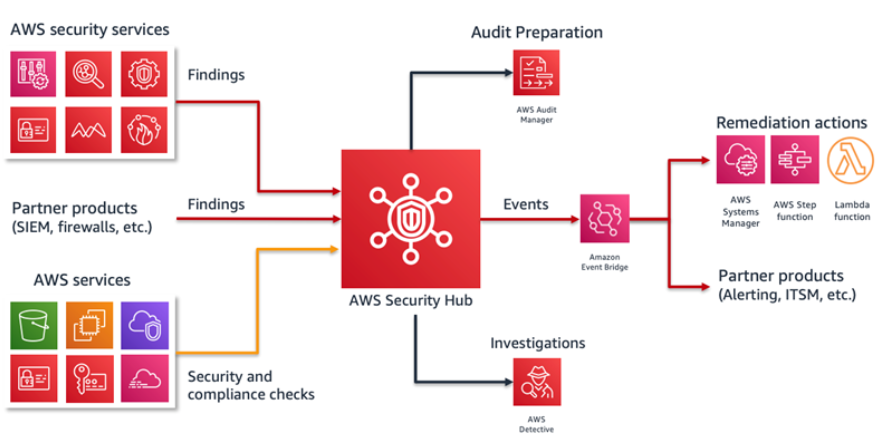
Security Hub is your centralized security dashboard. It:
- Aggregates findings from GuardDuty, Inspector, Config, Macie, IAM Access Analyzer, and 60+ third-party integrations
- Normalizes all findings into a standard format (ASFF — Amazon Security Finding Format)
- Scores your posture against security standards (CIS, PCI DSS, AWS Foundational)
- Lets you triage, investigate, and update finding status in one place
Enabling Security Hub
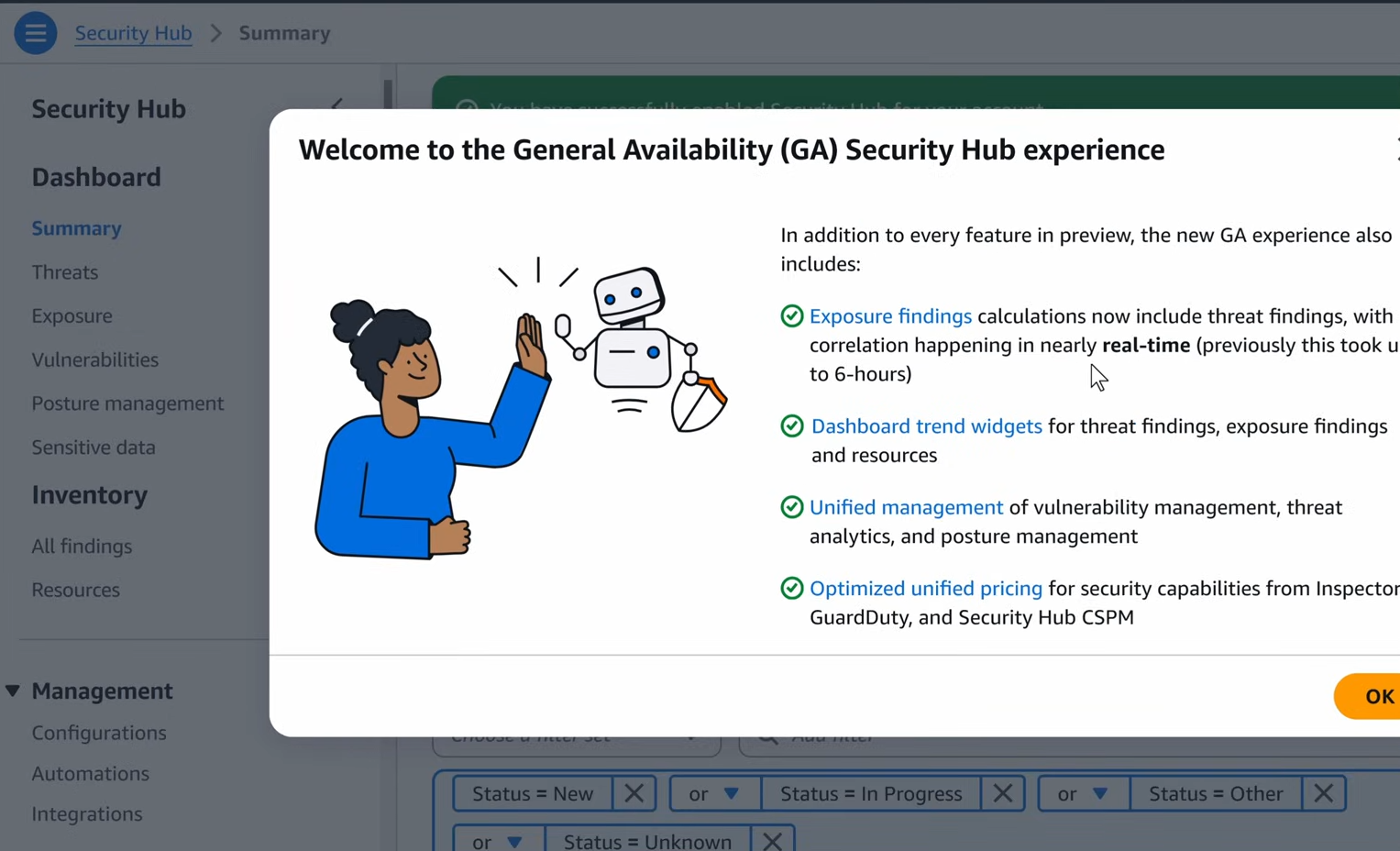
- Security Hub → Go to Security Hub → Enable Security Hub
- Enable standards: AWS Foundational Security Best Practices (enable this always), CIS AWS Foundations Benchmark
- Enable integrations: GuardDuty, Inspector, Config, IAM Access Analyzer
Security Hub → Security standards page showing three standards — FSBP, CIS v1.4, PCI DSS — with their enable/disable toggles and compliance scores
Findings in Security Hub
All findings appear in one place regardless of source:
Security Hub → Findings page filtered to Critical severity, showing findings from multiple sources (GuardDuty, Config, Inspector) with resource ARNs and workflow status
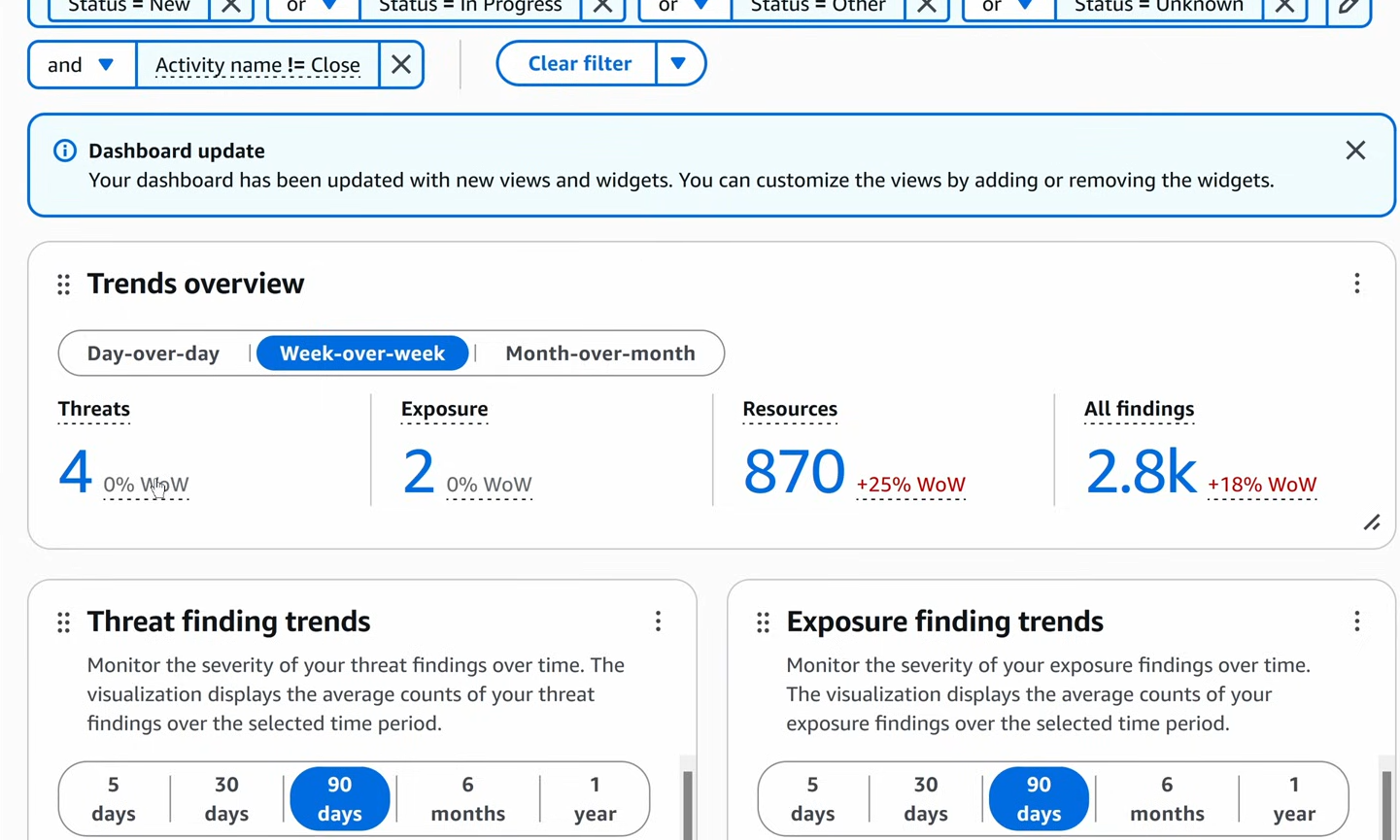
Finding workflow states:
NEW— just came in, not yet reviewedNOTIFIED— team has been alertedSUPPRESSED— known issue, intentionally ignoredRESOLVED— fixed
Update finding status to track your response:
- Select finding → Actions → Update finding
- Set workflow status → Resolved
Security Standards & Controls
Security Hub checks your environment against hundreds of controls. Each control maps to a specific configuration requirement.
Security Hub → CIS AWS Foundations Benchmark → expanded showing individual controls with Pass/Fail/Unknown status and affected resources
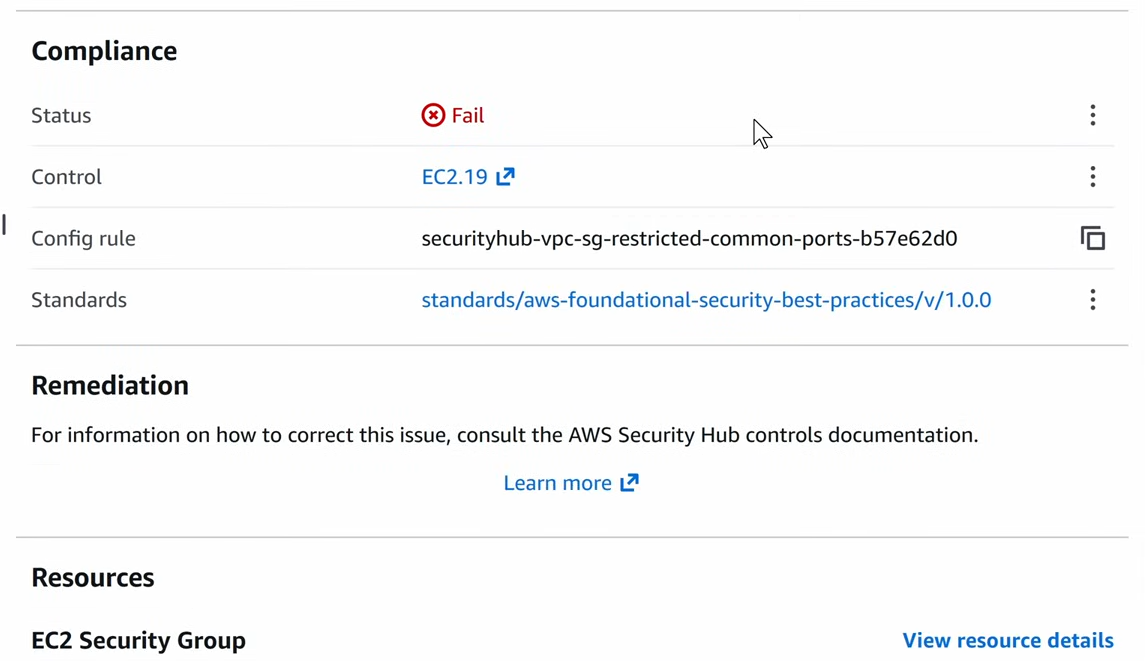
Drilling into a failed control:
- Security Hub → Security standards → CIS → find a failed control
- Click it → see which resources are failing and why
- Click a resource → see the specific finding with remediation guidance
Security Hub → a specific failed CIS control showing the description, remediation instructions, and list of non-compliant resources
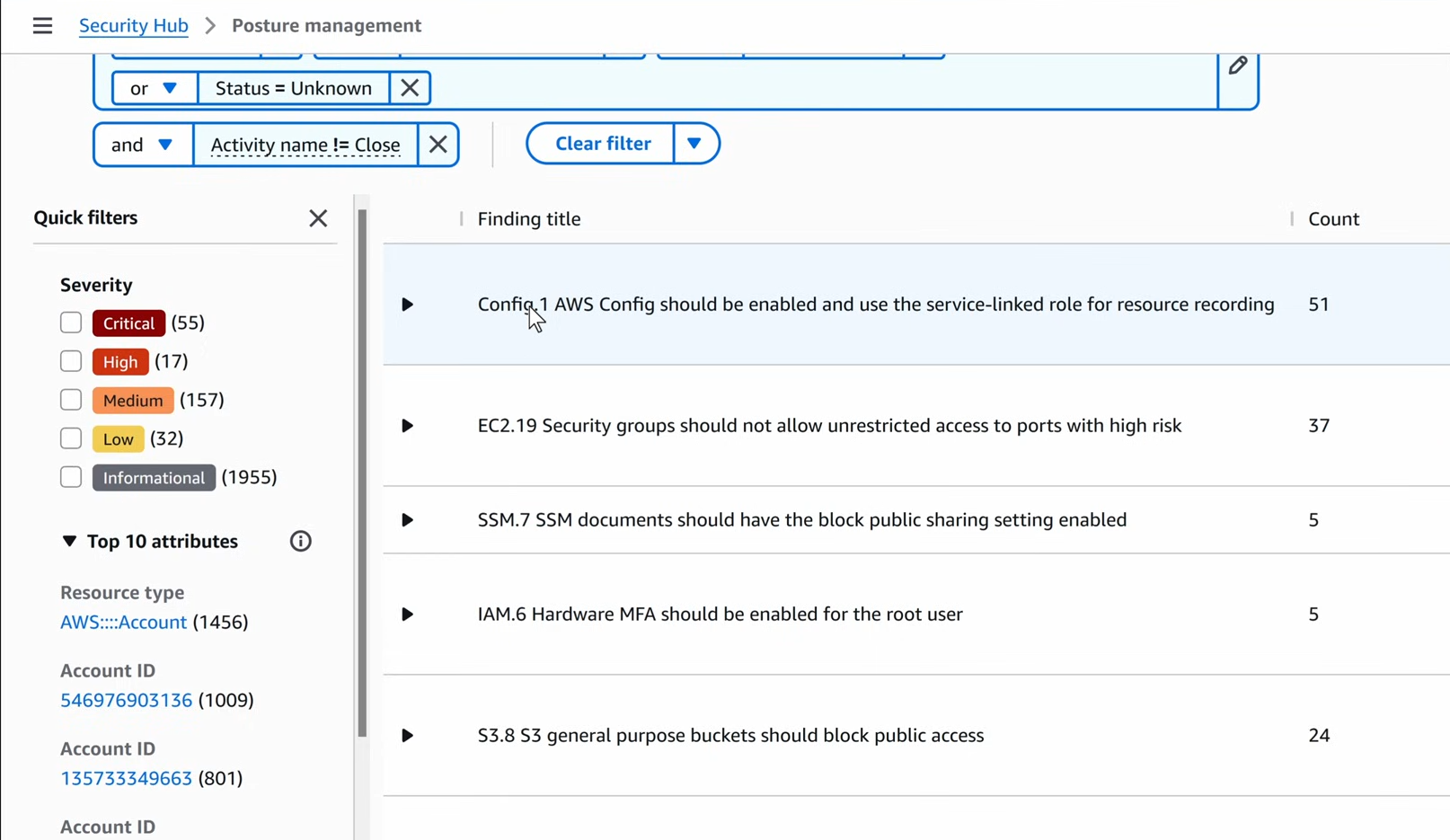
Insights
Insights are saved queries that group related findings for analysis.
Built-in insights include:
- AWS resources with the most findings
- AMIs generating the most findings
- EC2 instances with unresolved critical findings
Security Hub → Insights page showing the “AWS resources with the most findings” insight with a bar chart of top resources
You can create custom insights — for example: “All Critical findings on production-tagged resources that are still NEW after 24 hours”.
How They Work Together
1
2
3
4
5
6
7
Data Sources
    │
    ▼
GuardDuty ──────────────────────┐
AWS Config ──────────────────── │──► Security Hub ──► EventBridge ──► SNS/Lambda/SIEM
Amazon Inspector ──────────────┘
IAM Access Analyzer ───────────┘
Recommended flow:
- GuardDuty detects a threat
- Finding appears in Security Hub automatically
- EventBridge rule triggers on High/Critical finding
- Lambda isolates the affected EC2 / revokes IAM session / notifies security team
Lab — Enable GuardDuty and Trigger a Sample Finding
- Enable GuardDuty in your test account (if not already)
- Enable Security Hub → enable FSBP standard
- Enable the GuardDuty integration in Security Hub: Integrations → GuardDuty → Accept findings
- GuardDuty → Settings → Generate sample findings
- Go to Security Hub → Findings — you should see GuardDuty sample findings appear within a few minutes
Security Hub → Findings filtered by “Product name = GuardDuty” showing the sample findings flowing in from GuardDuty
- Click a Critical finding → review the full detail, resource, remediation
- Change the workflow status to
SUPPRESSED(since these are test samples)
Security Hub → finding detail panel showing the workflow status dropdown changed to Suppressed
Key Takeaways
- GuardDuty is zero-config threat detection — enable it in every account and every region on day one
- Finding names follow a pattern — learn the taxonomy to triage faster
- Security Hub is the single pane of glass — connect all your AWS security services to it
- Use EventBridge to automate response, not just notification
- Security Hub scores tell you your compliance posture at a glance — treat anything below 90% as a priority
References
You can find me online at:
