Week 1 — Day 1: AWS IAM Deep Dive
A full walkthrough of AWS Identity and Access Management — users, groups, roles, policies, least privilege, and the policy simulator.
What is IAM?
AWS Identity and Access Management (IAM) is the service that controls who can do what on which AWS resources. Every API call made to AWS — whether from the console, CLI, or SDK — is authenticated and authorized through IAM.
The core question IAM answers: “Is this identity allowed to perform this action on this resource under these conditions?”
Core Concepts
Users
An IAM User is a permanent identity tied to one person or application. It has long-term credentials (password for console, access keys for CLI/API).
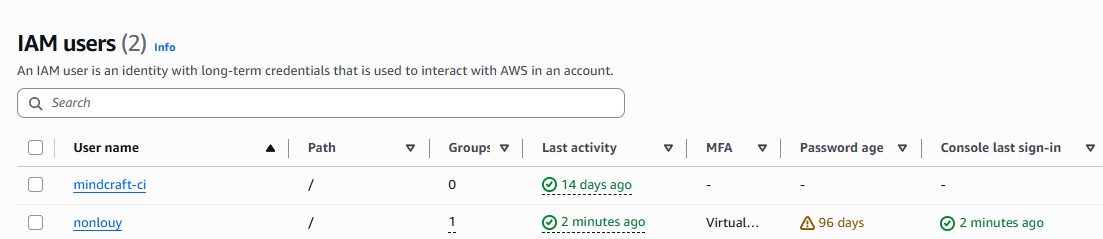
When to use: Human operators who need console access, or legacy applications that can’t use roles.
Avoid: Giving users more permissions than they need, sharing credentials between people.
Groups
A Group is a collection of users. Policies attached to the group apply to all users in it. Users can belong to multiple groups.
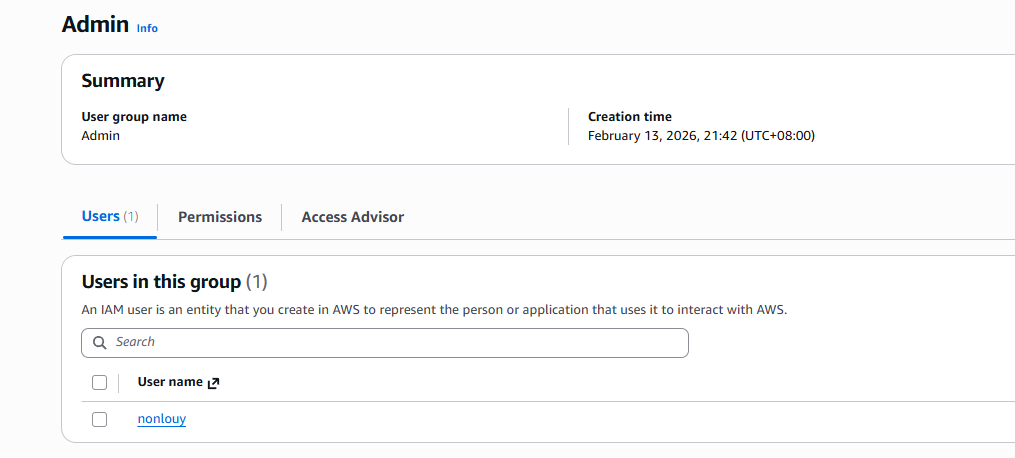
Example structure:
1
2
3
Group: Developers     → Policy: S3ReadOnly, EC2Describe
Group: Ops            → Policy: EC2FullAccess, CloudWatchFullAccess
Group: SecurityAudit  → Policy: SecurityAuditReadOnly
Groups simplify permission management — instead of editing each user, you edit the group once.
Roles
A Role is a temporary identity assumed by a trusted entity — an EC2 instance, a Lambda function, another AWS account, or a user. Unlike users, roles have no long-term credentials. When assumed, AWS issues short-lived tokens (15 min to 12 hours).
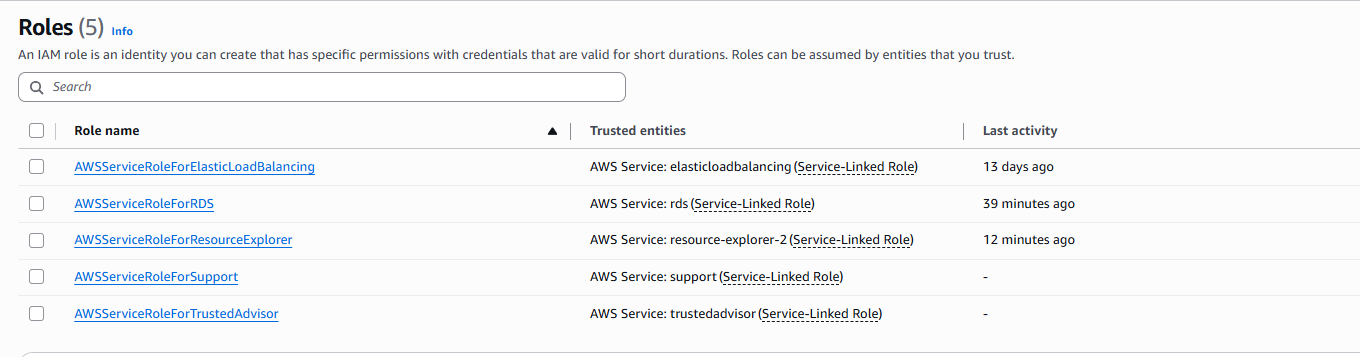
Key use cases:
- EC2 instance needs to read from S3 → attach an IAM role to the instance
- Lambda needs to write to DynamoDB → execution role with DynamoDB permissions
- Cross-account access → Role in Account B trusted by Account A
- Human users federating via SSO → assume a role after authenticating
Why roles over users for services: No credentials to rotate, leak, or manage. AWS handles token rotation automatically.
Policies
A Policy is a JSON document that defines permissions. It contains one or more statements, each with:
| Field | Description |
|---|---|
Effect | Allow or Deny |
Action | AWS API actions (e.g. s3:GetObject) |
Resource | ARN of the resource the action applies to |
Condition | Optional — constraints like IP, MFA, time |
Example — least privilege S3 read for one bucket:
1
2
3
4
5
6
7
8
9
10
11
12
13
14
15
16
{
  "Version": "2012-10-17",
  "Statement": [
    {
      "Effect": "Allow",
      "Action": [
        "s3:GetObject",
        "s3:ListBucket"
      ],
      "Resource": [
        "arn:aws:s3:::my-bucket",
        "arn:aws:s3:::my-bucket/*"
      ]
    }
  ]
}
Inline vs Managed Policies
| Inline | Managed | |
|---|---|---|
| Attached to | One specific user/role/group | Multiple identities |
| Reusable | No | Yes |
| Versioning | No | Yes (up to 5 versions) |
| AWS-managed | No | Yes (AWS Managed Policies) |
Best practice: Use AWS managed policies as a starting point, then create customer managed policies scoped to your exact needs. Avoid inline policies except for one-off exceptions.
Least Privilege Principle
Least privilege means granting only the permissions required to perform a specific task — nothing more.
In practice:
- Start with zero permissions
- Identify exactly what actions the identity needs
- Grant only those actions on only the required resources
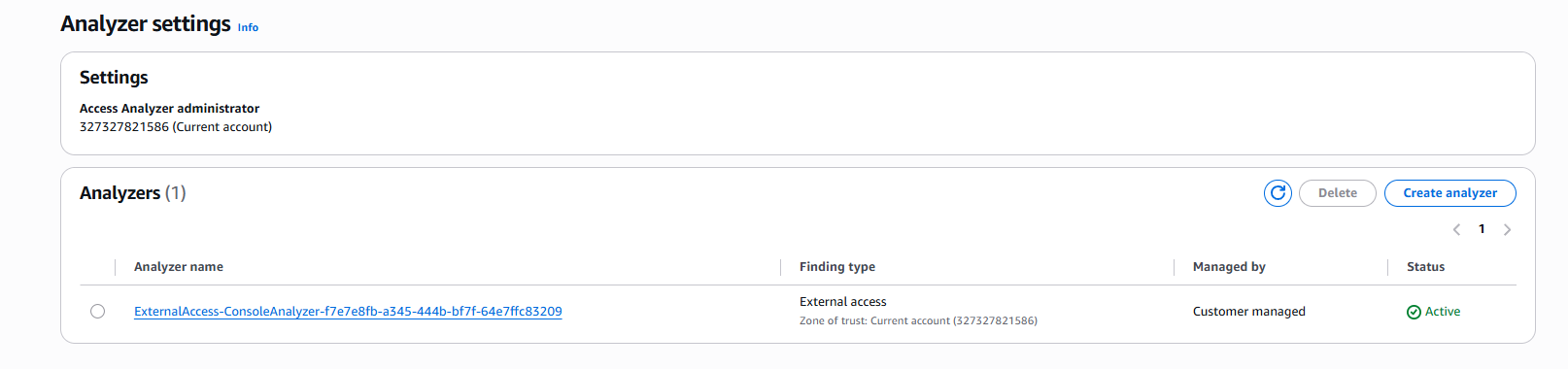
- Review and tighten over time using IAM Access Analyzer
Common mistake: Attaching AdministratorAccess or * actions “temporarily” and never removing it.
Conditions in Policies
Conditions let you add constraints to when a policy applies.
Enforce MFA:
1
2
3
4
5
6
7
8
9
10
{
  "Effect": "Deny",
  "Action": "*",
  "Resource": "*",
  "Condition": {
    "BoolIfExists": {
      "aws:MultiFactorAuthPresent": "false"
    }
  }
}
Restrict to specific IP range:
1
2
3
4
5
6
7
8
9
10
{
  "Effect": "Deny",
  "Action": "*",
  "Resource": "*",
  "Condition": {
    "NotIpAddress": {
      "aws:SourceIp": ["203.0.113.0/24"]
    }
  }
}
Require specific region:
1
2
3
4
5
6
7
{
  "Condition": {
    "StringEquals": {
      "aws:RequestedRegion": "ap-southeast-1"
    }
  }
}
IAM Policy Simulator
The Policy Simulator lets you test whether a specific identity is allowed or denied a specific action before applying it in production.
How to use:
- Go to IAM → Policy Simulator (or search “IAM Policy Simulator”)
- Select a user, group, or role
- Choose the AWS service and action to test
- Click Run Simulation
Useful scenarios:
- Verify a new policy doesn’t grant unintended access
- Debug why an identity can’t perform an action
- Test condition logic before deploying
Evaluation Logic
When AWS evaluates a request, it follows this order:
- Explicit Deny — if any policy has an explicit
Deny, the request is rejected immediately - Explicit Allow — if a policy allows the action and no deny exists, allowed
- Implicit Deny — if no policy allows the action, denied by default
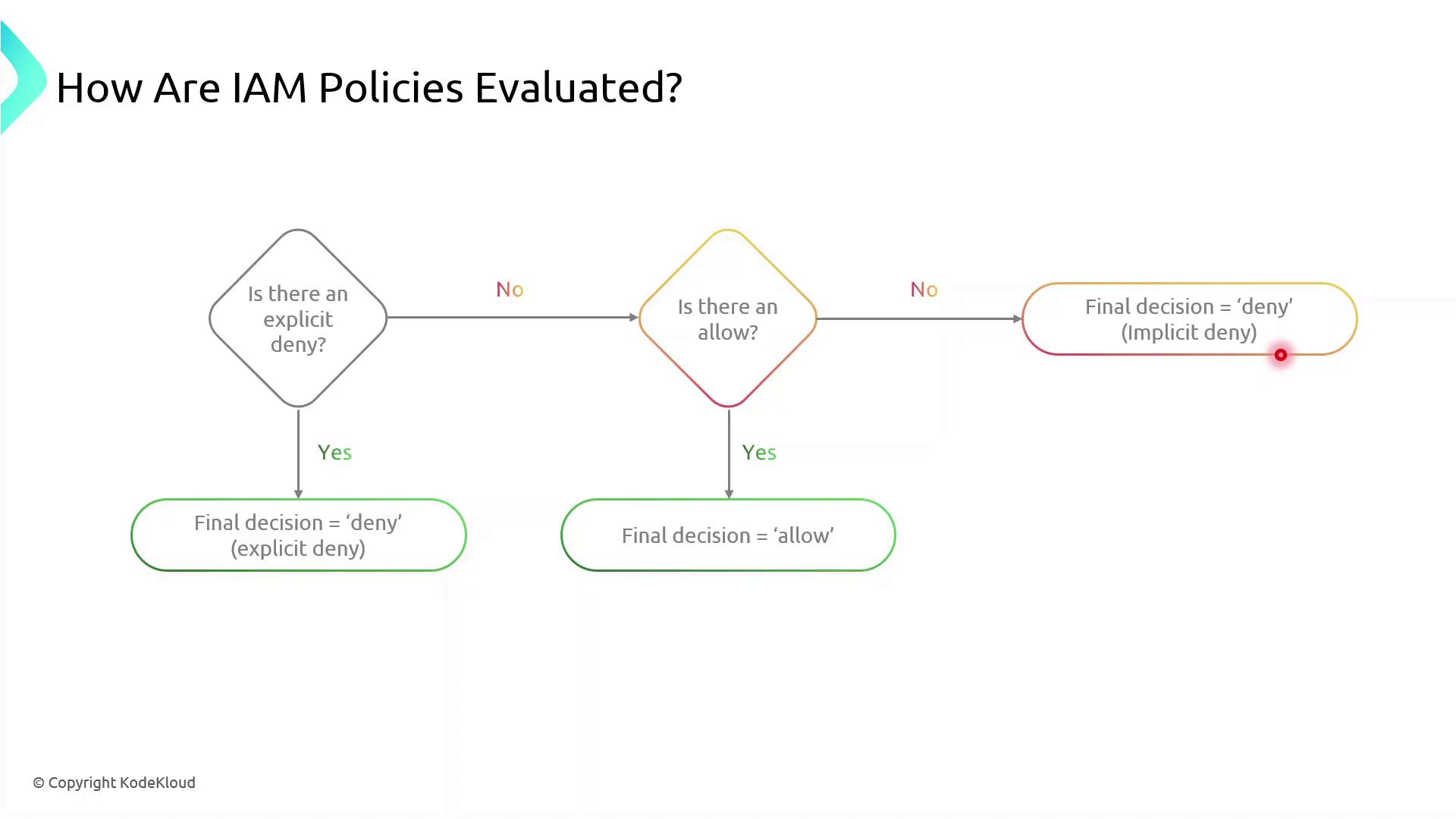
Key takeaway: Deny always wins. You cannot override a Deny with an Allow.
Lab walkthrought — Create a Least-Privilege Role
Objective: Create an IAM role that allows an EC2 instance to read from a specific S3 bucket — nothing else.
Steps:
- IAM → Roles → Create role
- Trusted entity: AWS service → EC2
- Skip managed policies — click Next
- Create inline policy with the JSON below, replace
my-bucketwith my bucket name:
1
2
3
4
5
6
7
8
9
10
11
12
13
14
15
16
{
  "Version": "2012-10-17",
  "Statement": [
    {
      "Effect": "Allow",
      "Action": [
        "s3:GetObject",
        "s3:ListBucket"
      ],
      "Resource": [
        "arn:aws:s3:::my-bucket",
        "arn:aws:s3:::my-bucket/*"
      ]
    }
  ]
}
- Name the role
ec2-s3-readonly-role→ Create - Open Policy Simulator → select the role → test
s3:GetObjecton your bucket → should show Allowed - Test
s3:DeleteObject→ should show Denied - Test
ec2:DescribeInstances→ should show Denied
Key Takeaways
- IAM is the foundation of everything in AWS security — get this right before anything else
- Roles over users for any service or automation — no long-term credentials
- Least privilege is not a one-time setup — use Access Analyzer regularly to tighten permissions
- Explicit Deny always wins regardless of any Allow
- Always test policies with the simulator before deploying
References
You can find me online at:
