Phase 1.1 Deployment
A More harden version of creating the VPC and the subnets with more secure ACLs and security groups

Step 1: The VPC & Subnet Architecture
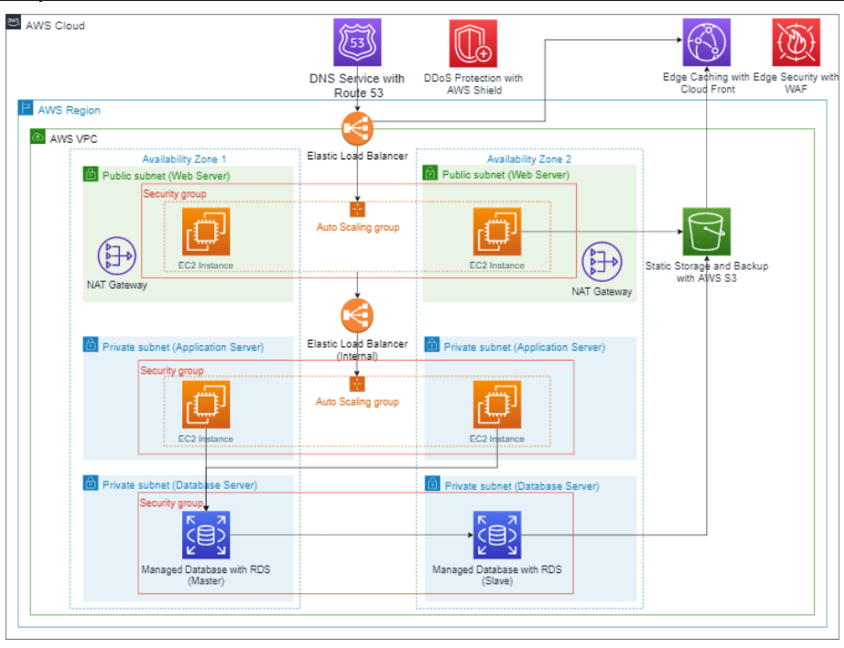
1.1 Creating a VPC
Created A VPC MindCraft-Fortress-VPC
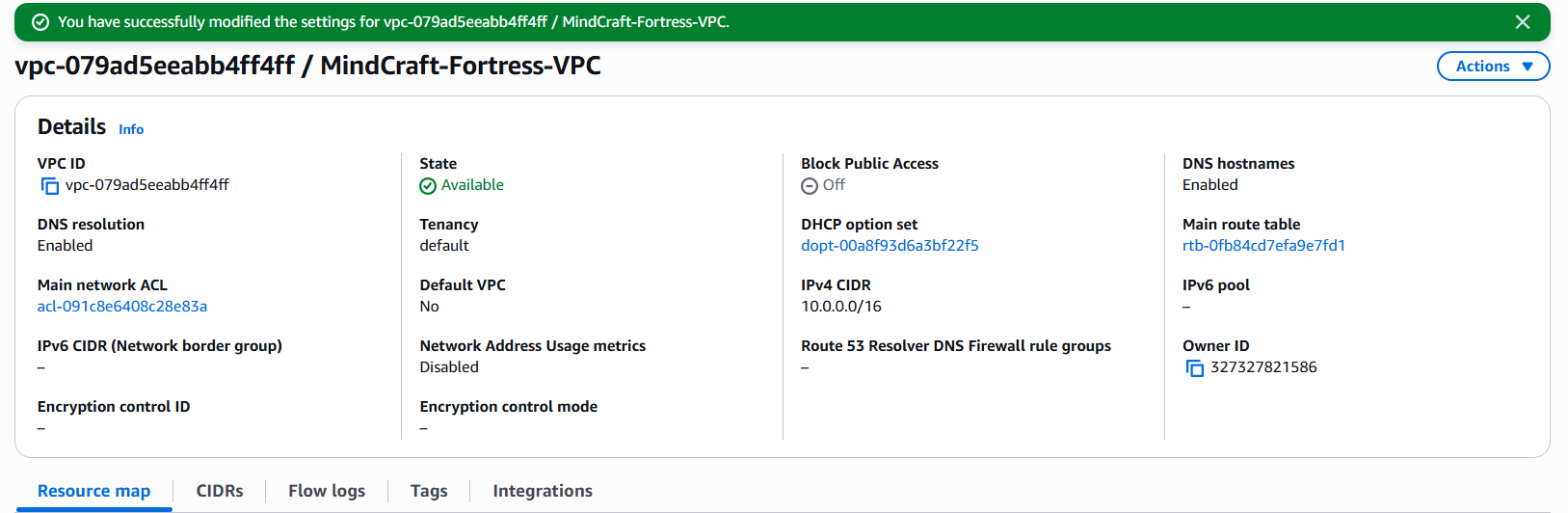
with a CIDR OF 10.0.0.0/16
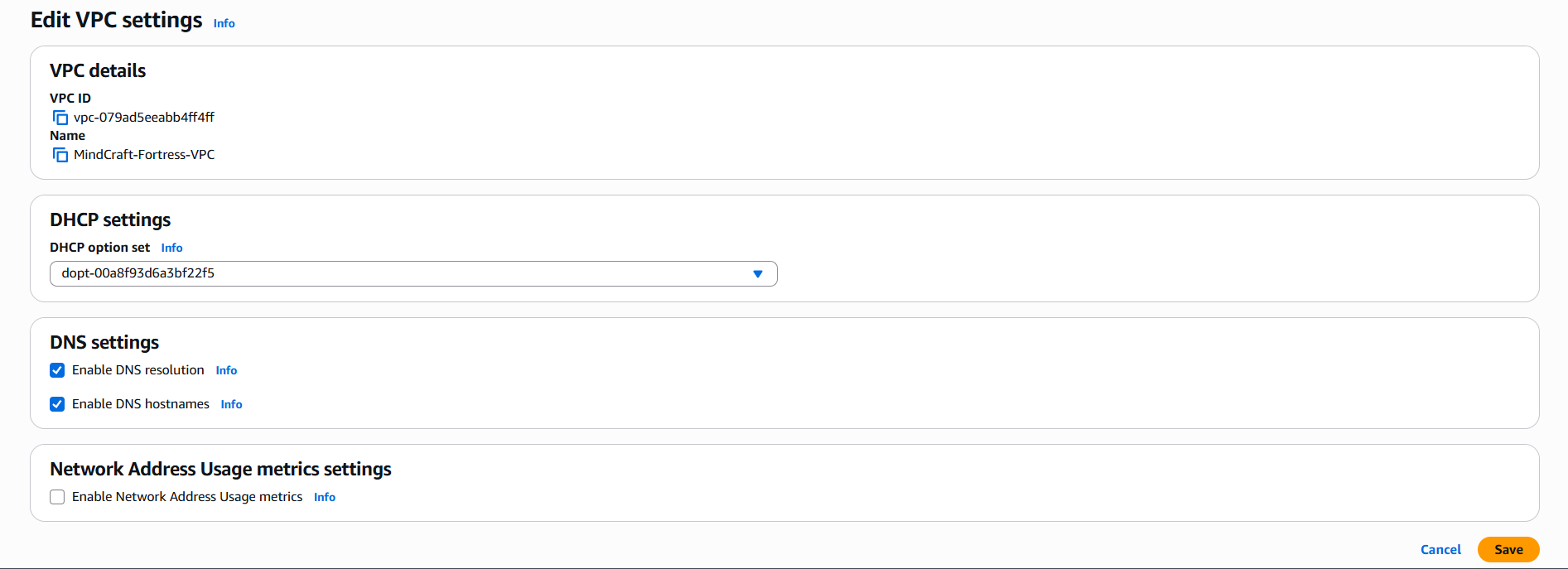
then enabled DNS hostnames for Node.js app to communicate with Firestore and for RDS to function
1.2 Subnet Allocation Table
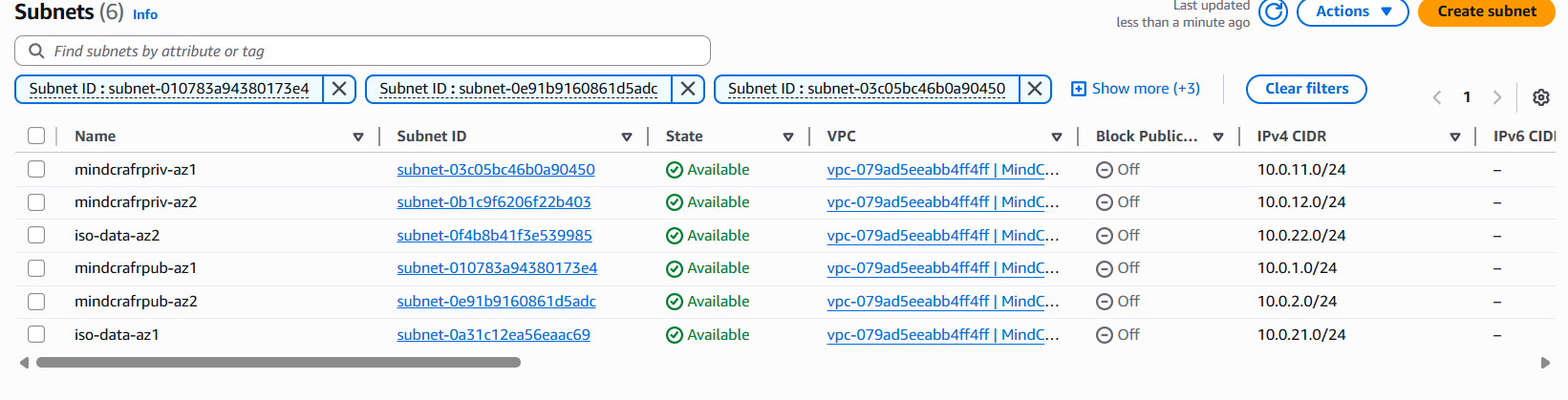
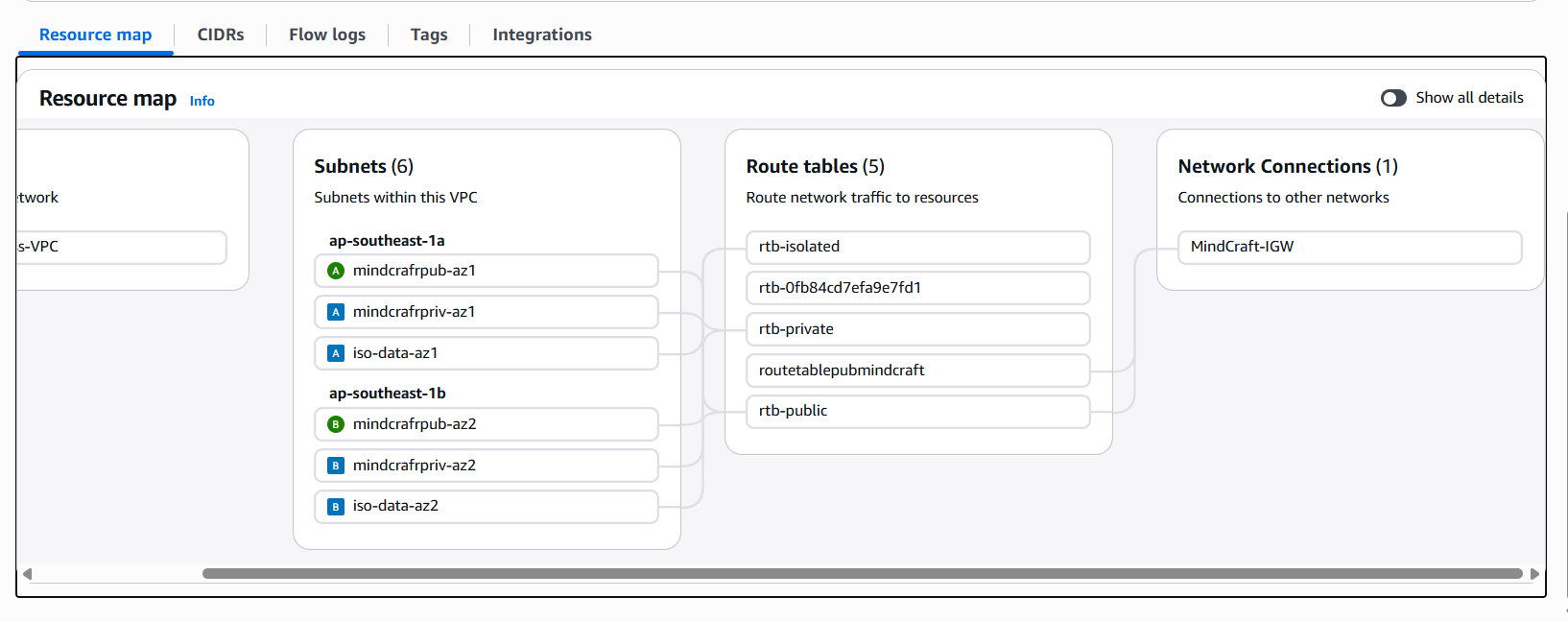
Created these 6 subnets manually in the VPC console. with 2 AZ as shown in Asia Pacific Region
| Tier | Subnet Name | CIDR Block | Availability Zone | Purpose |
|---|---|---|---|---|
| Public | pub-web-az1 | 10.0.1.0/24 | southeast1a | Bastion & NAT Instance |
| Public | pub-web-az2 | 10.0.2.0/24 | southeast1b | Backup Web Tier |
| Private | priv-app-az1 | 10.0.11.0/24 | southeast1a | MindCraft Node.js App |
| Private | priv-app-az2 | 10.0.12.0/24 | southeast1b | Secondary App Tier |
| Isolated | iso-data-az1 | 10.0.21.0/24 | southeast1a | Primary RDS (MySQL) |
| Isolated | iso-data-az2 | 10.0.22.0/24 | southeast1b | Standby RDS (Slave) |
Step 2: Connectivity & The $0 NAT Workaround
A private subnet has no route to the internet. Since the app needs to talk to Firestore, it needs a way out. i will instead use a NAT Instance instead of the expensive AWS NAT Gateway.
2.1 The Internet Gateway (IGW)
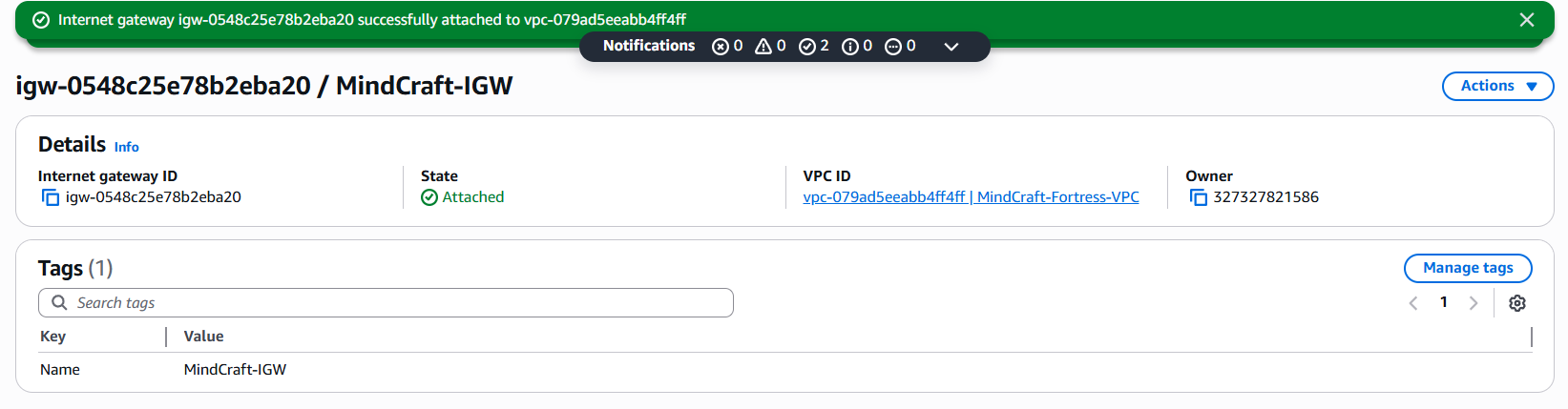
Created an IGW named
MindCraft-IGW.Attached it to your
MindCraft-Fortress-VPC
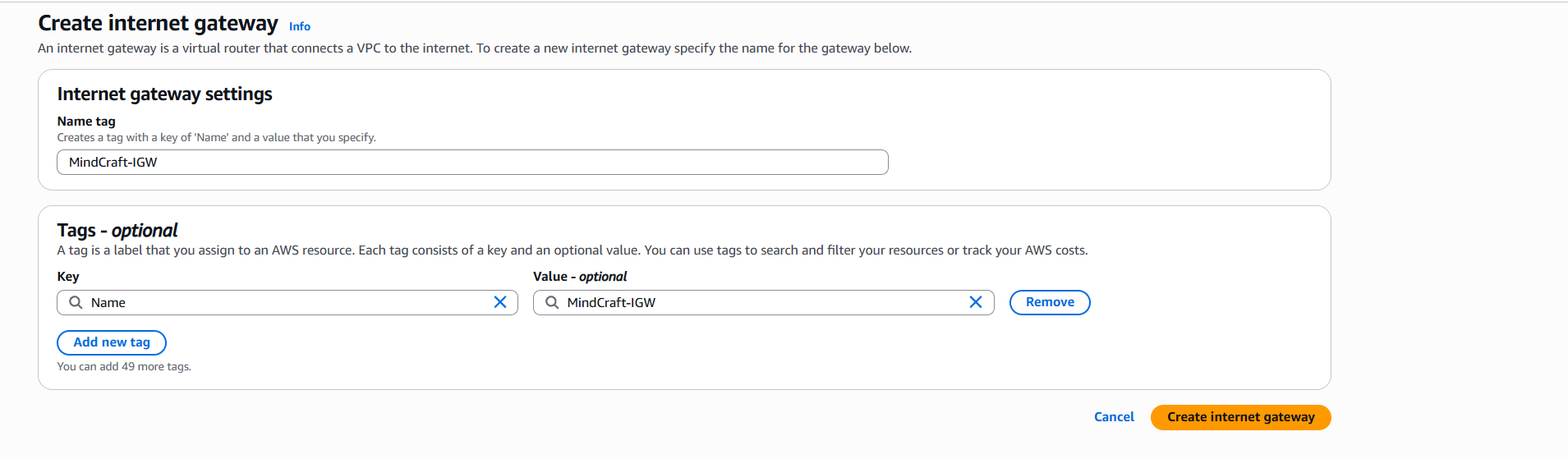
attach to my VPC
2.2 The NAT Instance (The $0 Solution)
Launched a
t2.microUbuntu instance inpub-web-az1.Crucial Security Step: Select the instance in the console, go to Actions > Networking > Change source/destination check, and set it to Stop. (This allows the instance to forward traffic for other servers).
The Script: Once inside that instance, run these commands to turn it into a router:
  sudo sysctl -w net.ipv4.ip_forward=1
  sudo iptables -t nat -A POSTROUTING -o eth0 -j MASQUERADE


Step 3: Route Tables (The Traffic Flow)
i will need three separate route tables to enforce the 3-tier isolation.
Public Route Table: * Route:
0.0.0.0/0→Internet Gateway (IGW).- Association:
pub-web-az1andpub-web-az2.
- Association:
Private Route Table: * Route:
0.0.0.0/0→ Instance ID of your NAT Instance.- Association:
priv-app-az1andpriv-app-az2.
- Association:
Isolated Route Table: * Routes: Local only. No route to
0.0.0.0/0.- Association:
iso-data-az1andiso-data-az2.
- Association:

Step 4: Advanced Security (NACLs & Monitoring)
To satisfy the DevSecOps requirements , we add stateless protection.
Public NACL: Configure it to allow inbound traffic on 80 (HTTP), 443 (HTTPS), and 22 (SSH - restricted to my IP).
Private NACL: Configure it to allow inbound traffic only from the
10.0.1.0/24and10.0.2.0/24ranges. This ensures the backend tier only listens to the frontend tier.VPC Flow Logs:
4.1 — Configure NACLs (Stateless Firewall)
First: Create 2 NACLs
nacl-publicnacl-private
then attach them to the Mindcraft VPC
1. Public NACL (for Web Tier)
Associate subnets
pub-web-az1pub-web-az2
Go to:
Subnet associations → Edit → select public subnets
Inbound Rules
Edited inbound rules:
|Rule #|Type|Protocol|Port|Source|Allow/Deny| |—|—|—|—|—|—| |100|HTTP|TCP|80|0.0.0.0/0|ALLOW| |110|HTTPS|TCP|443|0.0.0.0/0|ALLOW| |120|SSH|TCP|22|Your IP|ALLOW| |*|ALL|ALL|ALL|0.0.0.0/0|DENY| 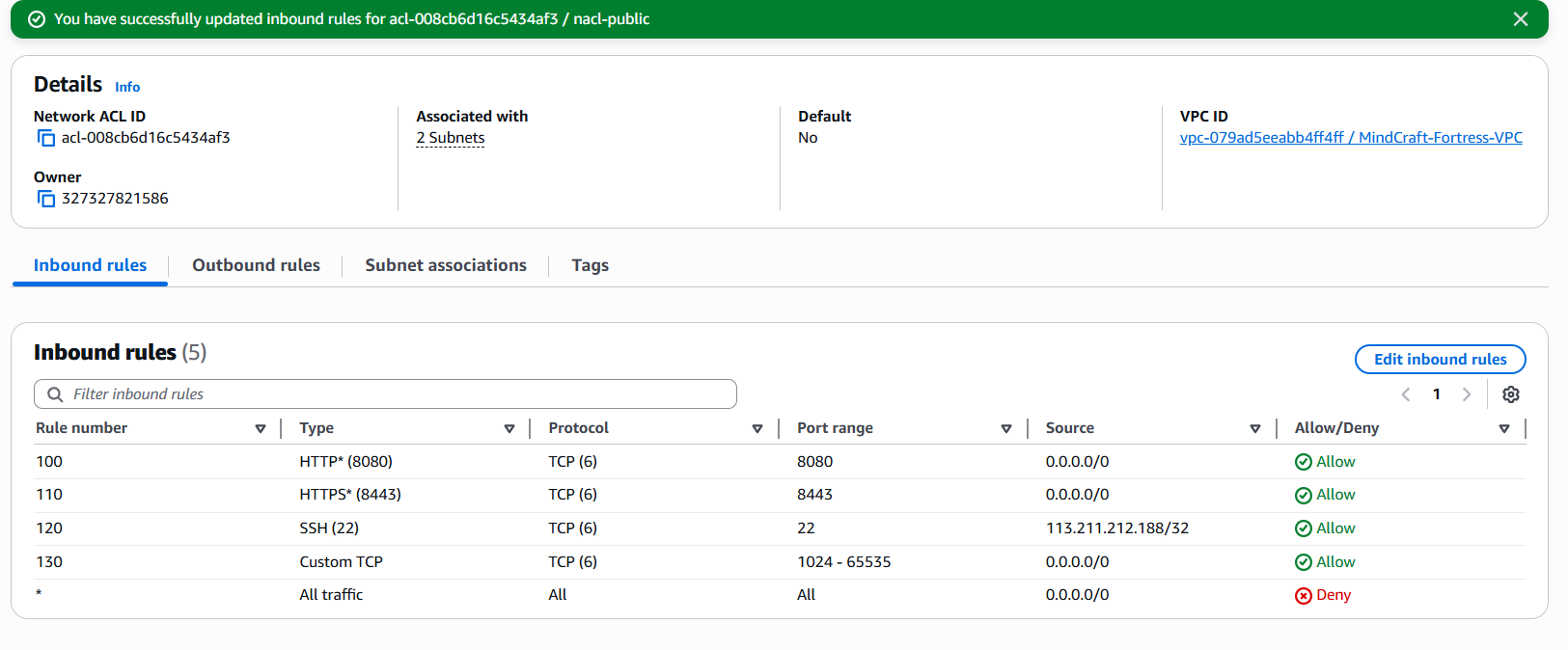
Outbound Rules
|Rule #|Type|Port|Destination|Allow| |—|—|—|—|—| |100|ALL|ALL|0.0.0.0/0|ALLOW| 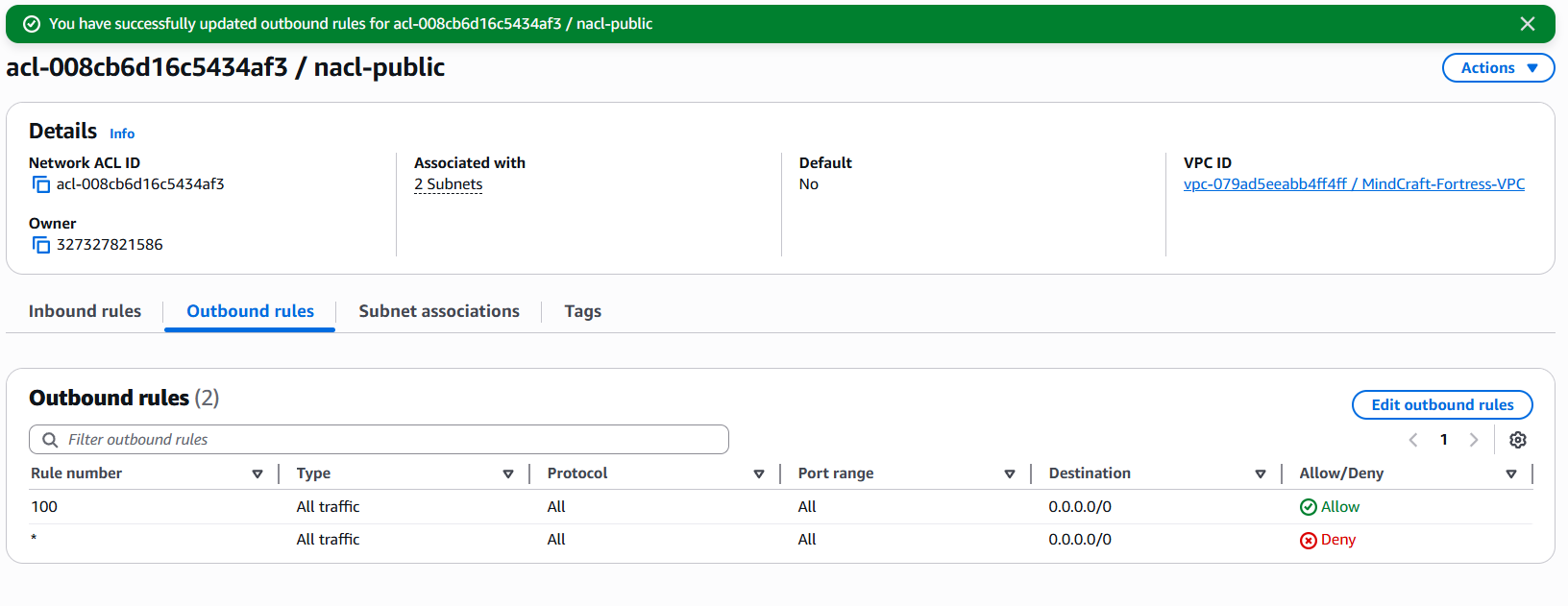
2. Private NACL (App Tier)
Associate subnets
priv-app-az1priv-app-az2
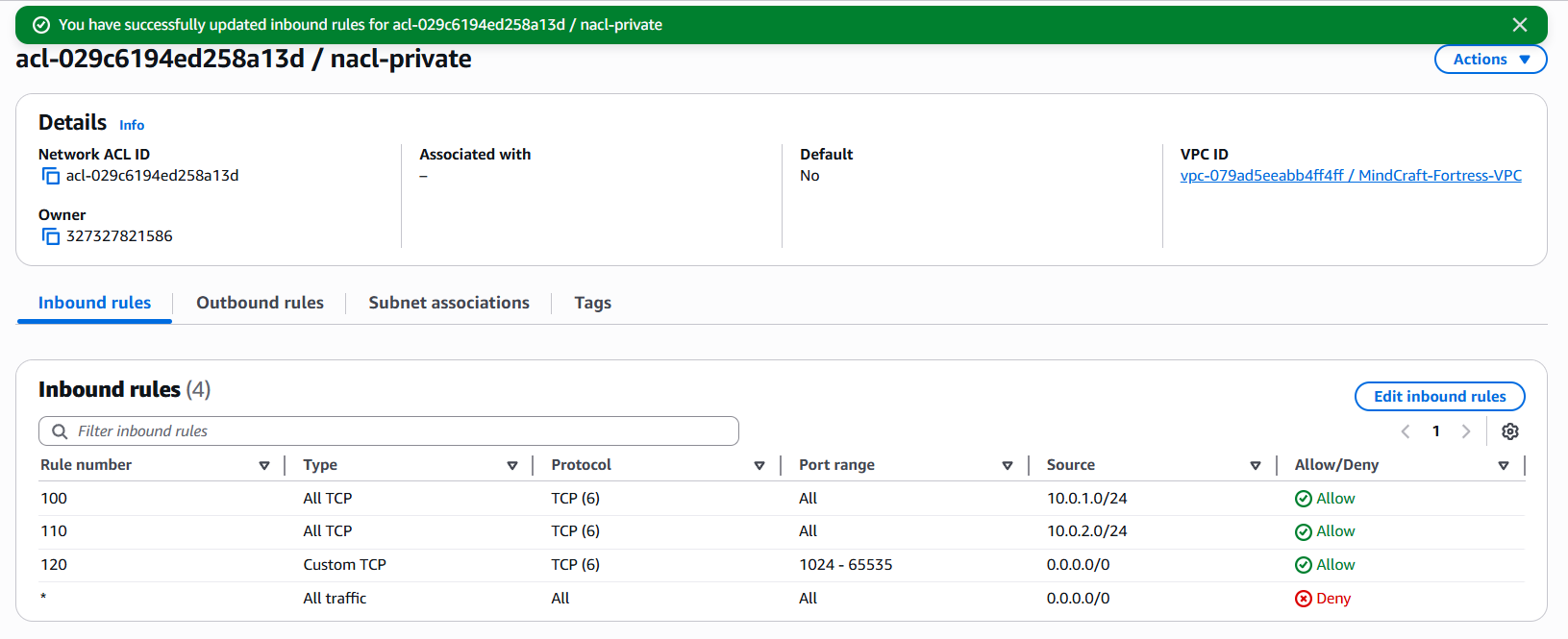
Inbound Rules
Allow ONLY from public subnets:
| Rule # | Type | Port | Source | Allow |
|---|---|---|---|---|
| 100 | ALL TCP | 0–65535 | 10.0.1.0/24 | ALLOW |
| 110 | ALL TCP | 0–65535 | 10.0.2.0/24 | ALLOW |
| * | ALL | ALL | 0.0.0.0/0 | DENY |
Outbound Rules
| Rule # | Type | Port | Destination | Allow |
|---|---|---|---|---|
| 100 | ALL | ALL | 0.0.0.0/0 | ALLOW |
Since NACL are stateless
it wont allow the response packet and need to be stated manually, To be safe, allow ephemeral ports (1024–65535)
Public NACL — Inbound
| Rule # | Type | Port | Source | Allow |
|---|---|---|---|---|
| 130 | Custom TCP | 1024–65535 | 0.0.0.0/0 | ALLOW |

Private NACL — Inbound
| Rule # | Type | Port | Source | Allow |
|---|---|---|---|---|
| 120 | Custom TCP | 1024–65535 | 0.0.0.0/0 | ALLOW |

Step 5: Flow Logs section
Basic config
- Filter:
ALL - Destination:
Send to CloudWatch Logs
🔹 Log group
Select:
Create new log group
- Name :
MindCraft-VPC-FlowLogs
🔹 IAM Role
Choose:
- Create new IAM role (AWS will auto-create it)
then Create the flow log
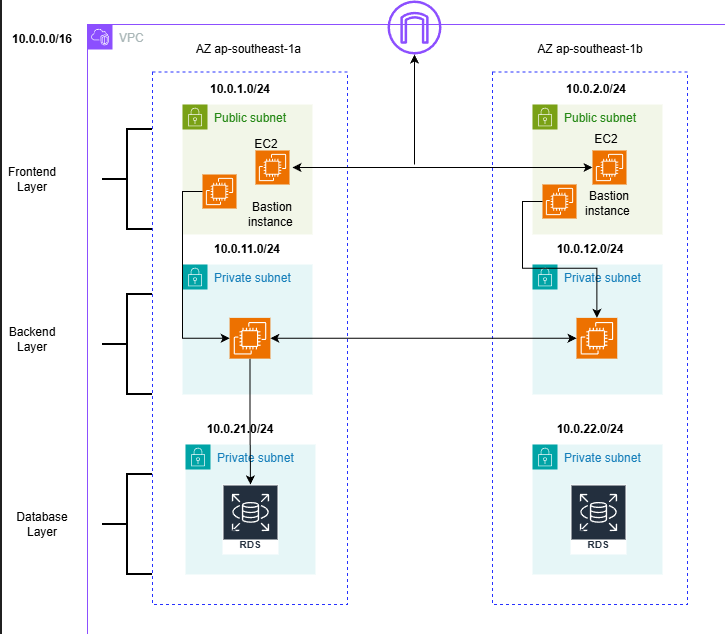
Final Phase 1 Diagram
You can find me online at:
